

Getting started
My ball won't scan
Type the code. It works almost every time the camera doesn't. Go to babelballs.com/scan, type the letters and numbers printed above and below the QR code (both groups), and press Find my friend.
The camera won't read the code
- Find more light, or step out of the shade. Glare is worse than dark, so turn the ball until the shine is off the code.
- Hold the ball about four inches away and tilt it a little. The dimples bend the code.
- Use your phone's own camera app, not a scanner inside another app. A page that opens inside another app's browser still works, but your collection is then saved in that app's browser. Use its menu to open the page in Safari or Chrome, so everyone you meet stays in one place.
- Still nothing? Type the code. It's the same code.
What the screen says, and what to do
- That does not look like a ball code. The box got too few or too many characters. Type both groups, the one above the QR and the one below.
- That page went its own way. No ball has the code you typed. Check it against the ball. You can type a letter O for a zero, and an I or an L for a one, and it still works.
- Which one is on the ball? What you typed looks like several real codes. Tap the code printed on your ball.
- That is a lot of codes. Too many codes that didn't match came from your connection. Wait ten minutes and try again.
- Please sign in first. We've seen a lot of wrong codes in the last hour, so for a while a code only opens for someone signed in. Sign in, then scan again.
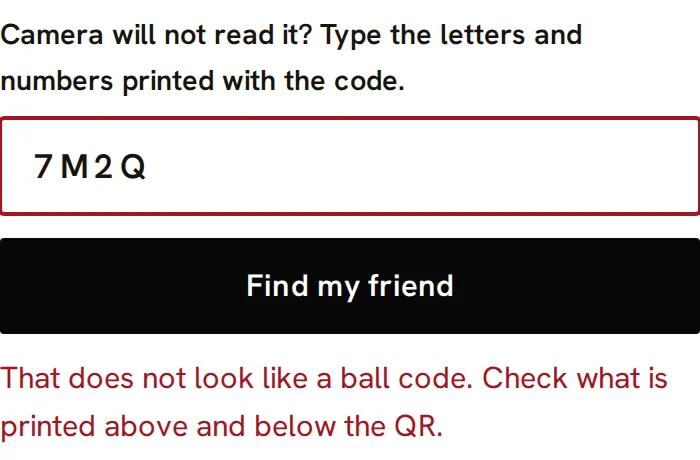
Type both groups of the code. Part of it isn't enough.
The code is worn or scuffed
If you can't read the code at all, email hello@babelballs.com with a photo of the back of the ball and, if you bought it, your order number.
It came with a tag
If your box or sleeve has an NFC tag, tapping it is another way in. See Tap a tag.
Was this article helpful?
Be the first to rate this article